ProgrammePreiseSupportBlog

WebRTC Leak Tester

Ein WebRTC Leak Test prüft, ob Ihr Browser Ihre IP-Adresse den von Ihnen besuchten Websites verrät

Laden …

Protect your online activity

ClearVPN stellt sicher, dass alle Ihre WebRTC-Anfragen sicher durch einen verschlüsselten Tunnel geleitet werden, wodurch mögliche Leaks verhindert werden. Wir speichern keine Logs, sodass Ihre Privatsphäre vollständig geschützt bleibt.

Was ist WebRTC?

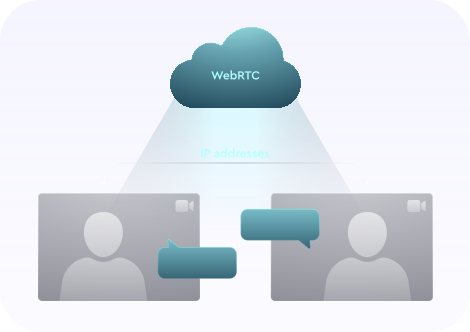
Web Real-Time Communication (WebRTC) is a collection of standardized technologies that allows web browsers to communicate with each other directly without the need for an intermediate server. Benefits of WebRTC include: faster speeds and less lag for web apps like video chat, file transfer, and live streaming.

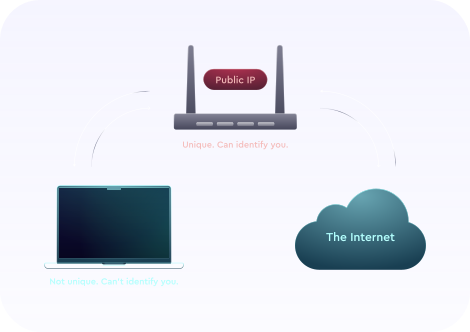
Any two devices talking to each other directly via WebRTC, however, need to know each other's real IP addresses. In theory this could allow a third-party website to exploit the WebRTC in your browser to detect your real IP address and use it to identify you. This is what we call a WebRTC leak.

Any leak of your public IP address is a threat to your privacy, but WebRTC leaks are lesser-known and easily overlooked, and not all VPN providers protect you from them!

Was bedeutet es, ein WebRTC Leak zu haben?

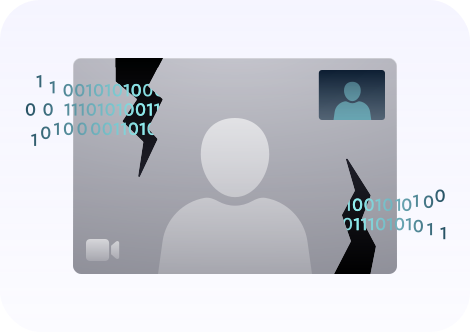
This is the visibility of an IP address, which can pose a big security risk for an end-user. WebRTC leaks take place when you're trying to establish video or audio communication with another person via a browser that uses WebRTC technology. A browser then reveals your IP address — that's why it's called a leak.

As long as WebRTC is turned on in your browser and you're on a website that uses it, your real IP address will be visible, and, therefore, it will be leaking. The only way to avoid a WebRTC leak is to turn it off in your browser (more on how to do this later).

5 Schritte zum Feststellen eines WebRTC Leaks (mit VPN an und aus)

If you're not using a VPN you will undoubtedly be exposing some private information to third parties. If you are using a VPN and the leak tool indicates there may be a leak, then you can perform the following leak test to be sure:

  1. Disconnect from the VPN and open this page in a new tab or window.
  2. Make a note of any public IP addresses you see.
  3. Close the page.
  4. Connect to the VPN and reopen this page.
  5. If you still see any of the public IP addresses from Step 2, then you have a privacy leak.

Welche Browser sind am gefährdetsten?

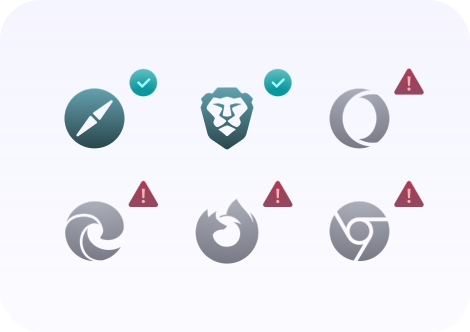
As of this writing, users of Firefox, Chrome, Opera, and Microsoft Edge are most vulnerable to WebRTC leaks because these browsers have WebRTC enabled by default.

Note that you may be safe from WebRTC leaks in one browser and not in another. If you regularly use multiple browsers, then you should consider using the ClearVPN WebRTC Leak Tester on each of them.

Wie schützt man sich vor WebRTC Leaks?

Einige WebRTC-Funktionen können Sie in den Einstellungen Ihres Browsers deaktivieren. In den folgenden Abschnitten lernen Sie, wie Sie dies in Google Chrome, Safari, Firefox, Opera und Microsoft Edge umsetzen können.

It’s best to use an extension to disable WebRTC on Chrome because doing it manually can cause damage to the functionality of your browser. Here are a couple of extensions you could use:

  • WebRTC Network Limiter is an official Google extension that tinkers with WebRTC settings to stop any IP leaks without completely blocking it;
  • uBlock Origin isn’t dedicated to WebRTC alone, but it has a feature to disable it on your browser.

There’s no need to disable WebRTC in Safari. Safari’s permissions model is stricter than those of most browsers. By default, no IP addresses are made available to websites except the one you use to access the site. Therefore you shouldn’t need to take any additional action to prevent WebRTC leaks in Safari. Note, however, that if you grant any particular site permission to use audio or video capture, you might expose your IPs.

  1. Type about:config into the address bar.
  2. Click the "I accept the risk!" button that appears.
  3. Type media.peerconnection.enabled in the search bar.
  4. Double-click to change the Value to "false"

This should work on both mobile and desktop versions of Firefox.

  1. Open Settings in Opera. To do this:
    1. On Windows or Linux, click the Opera logo at the top-left corner of the browser window;
    2. On Mac, click Opera in the toolbar and locate settings under Preferences.
  2. Expand the Advanced section on the left-hand side and click Privacy & security.
  3. Scroll down to WebRTC and select the Disable non-proxied UDP radio button.
  4. Close the tab and the settings should automatically save.

Unfortunately, there’s currently no way to completely disable WebRTC in Microsoft Edge. However, you can set your browser to hide your local IP address if you:

  1. Type about:flags into the address bar.
  2. Check the option marked Hide my local IP address over WebRTC connections.

So werden Sie von den spezialisierten Ingenieuren von ClearVPN geschützt

ClearVPN schützt Sie vor einem breiten Spektrum von WebRTC Leaks verschiedener Browser und Plattformen. Da WebRTC noch eine relativ neue Technologie ist, ist es wichtig, kontinuierlich verschiedene Szenarien über verschiedene Plattformen und Browser auf WebRTC Leaks zu testen. ClearVPN beschäftigt ein Team genau darauf spezialisierter Ingenieure, die kontinuierlich neue Leak-Vektoren erforschen und sofort entsprechende Abhilfen entwickeln. Dank dieses Teams ist ClearVPN eindeutiger Marktführer in diesem Bereich.

Get ClearVPN
Notarized by Apple